 Scout
Beta Version 1.0.0, free to use
Open roles at your target companies, ranked by fit
Tell Scout your job titles, your resume and the companies you care about. It reads their job pages, puts the best fits closest to you on a radar, and drafts outreach notes to people at those companies. You send them.
The Mac app is for Apple silicon. On Windows or an Intel Mac, use the browser version. No account, and your resume and notes stay on your computer.
How it works
From your titles to an application
You do the parts only you can do. Scout does the reading and sorting, and keeps the record.
- Tell itYour titles, your resume, and the companies you want.
- It readsEach company's job feed, sitemap or careers page, and free remote job boards.
- It matchesA role stays only if its title fits one of your titles or specialties.
- You applyOne click opens the real posting. Scout never submits anything.
- It remembersNew roles, taken-down roles, notes and follow-up dates.
Start here
If you have never used Scout
Setup takes about two minutes and asks four questions. Nothing is uploaded, and you can change every answer later in Settings.
1. Choose how to start
On the first screen, pick Start from what I am looking for. If you already have a Scout backup, restore it instead. The Mac app and the web version work the same way.
2. Who are we scouting for?
Your headline (the kind of work you do, in your words), your level and your specialties. Paste your resume if you like. Scout uses this to score every role and to write notes in your voice.
3. What are you aiming at?
Add the job titles you want and where you want to work. A role shows up when its title carries every word of one of your titles.
4. Which companies matter?
Type the companies you want searched, one per line. Scout reads their public job pages as soon as you finish. You can add more any time from Companies.
5. When should Scout tell you?
Pick the fit score a new role must reach before Scout calls it out. It starts at 70. Move it up for fewer alerts or down for more.
6. Wait for the first search
The line at the bottom shows what each source returned, and roles appear on the radar as they come in. If a company shows nothing, that line says why.
7. Click a dot
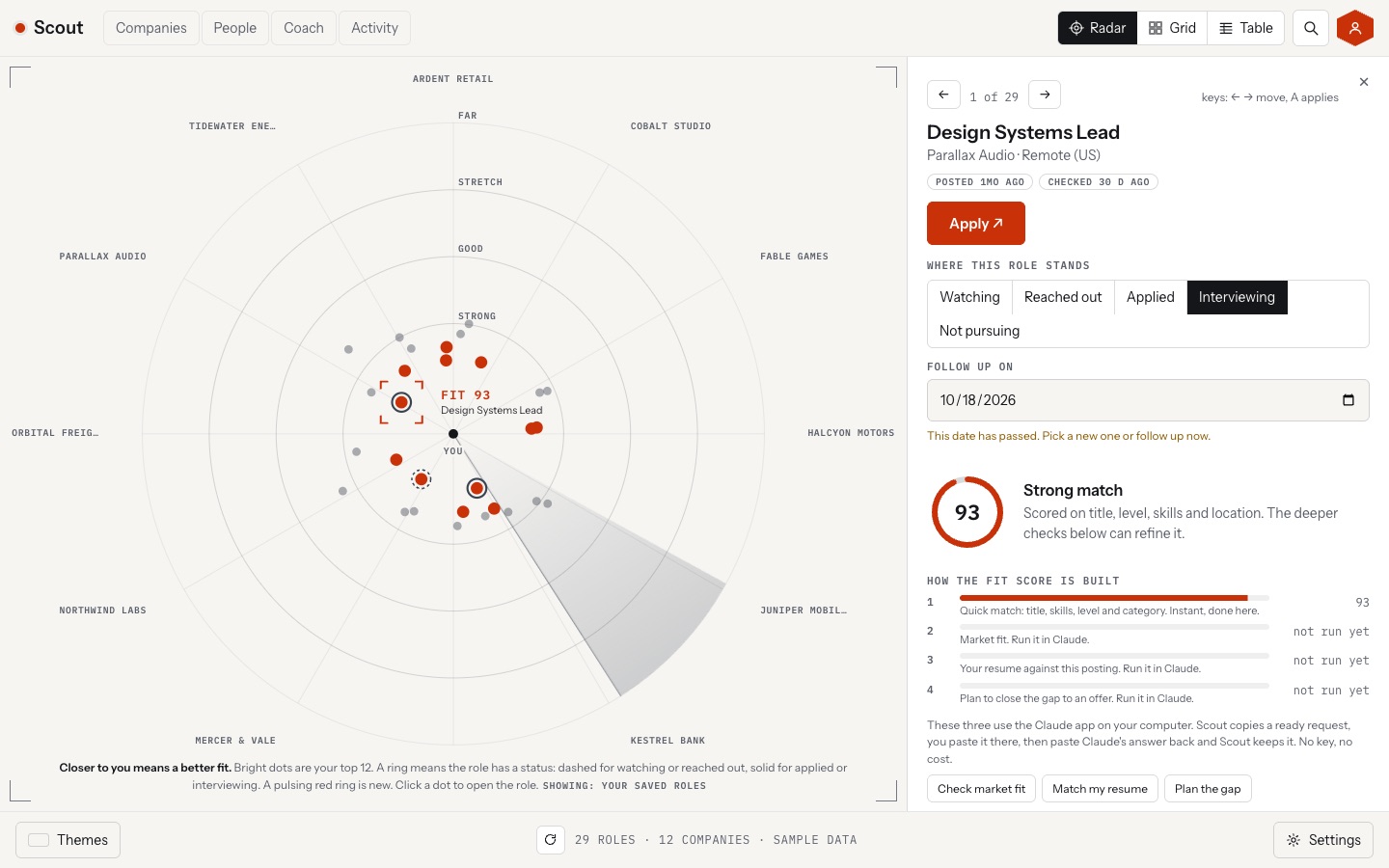
The role opens beside the radar with its score. Set a status, add a follow up date, and press Apply to open the real posting. Scout never applies for you.
8. Come back later
Press Refresh, or the R key, to look for new roles. New ones get a pulsing red ring. Activity lists the follow ups that are due.
The radar
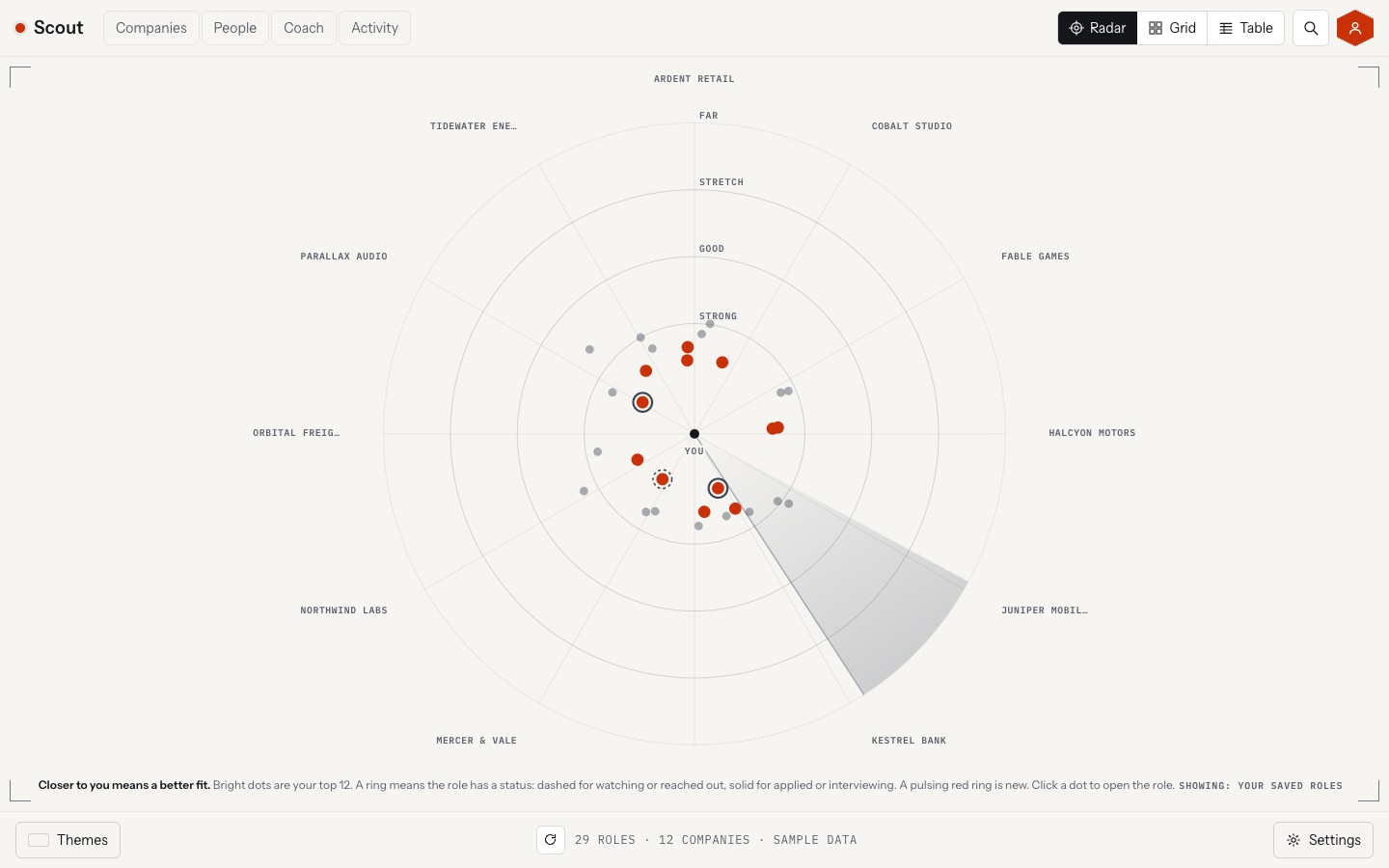
Closer to you means a better fit
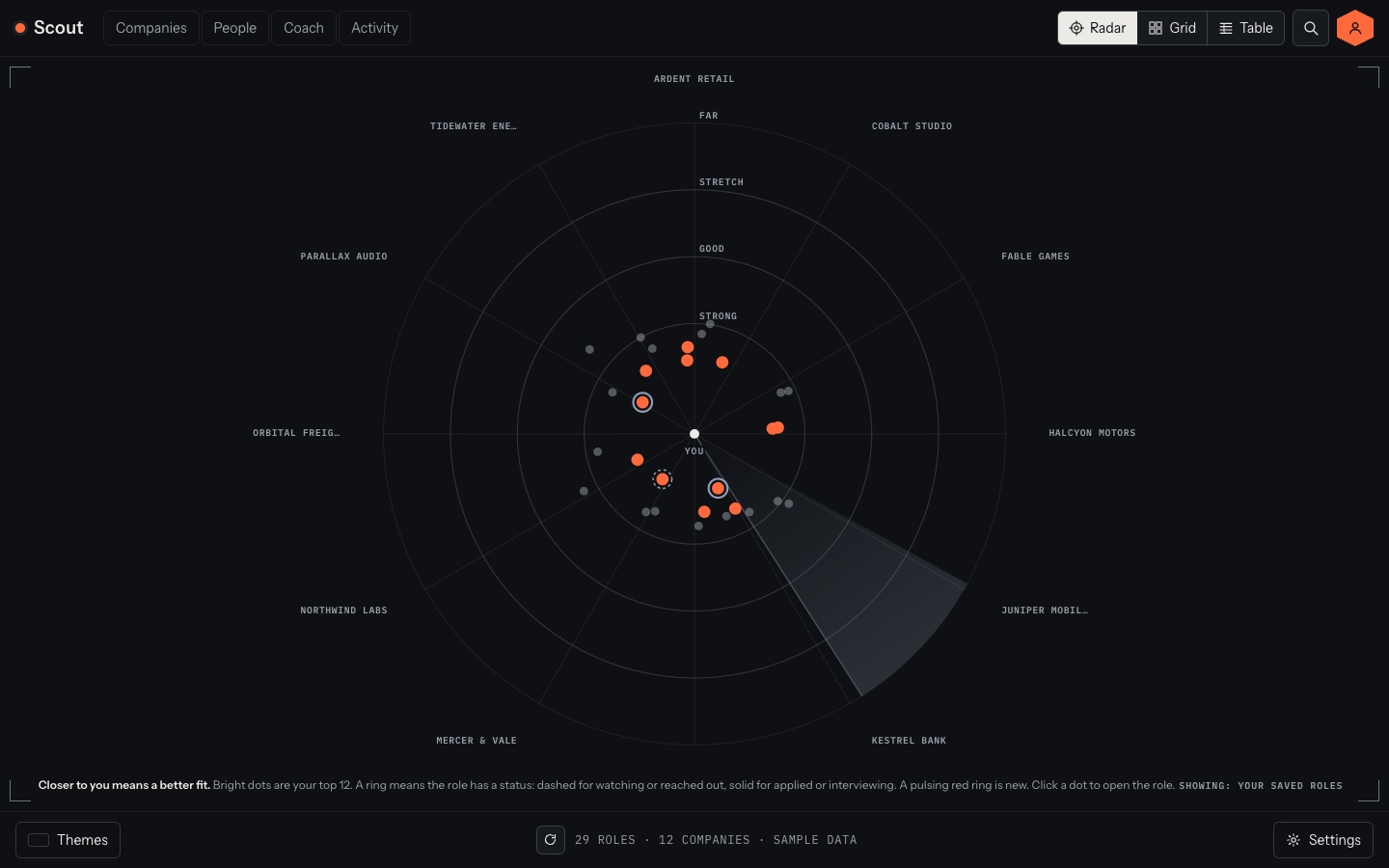
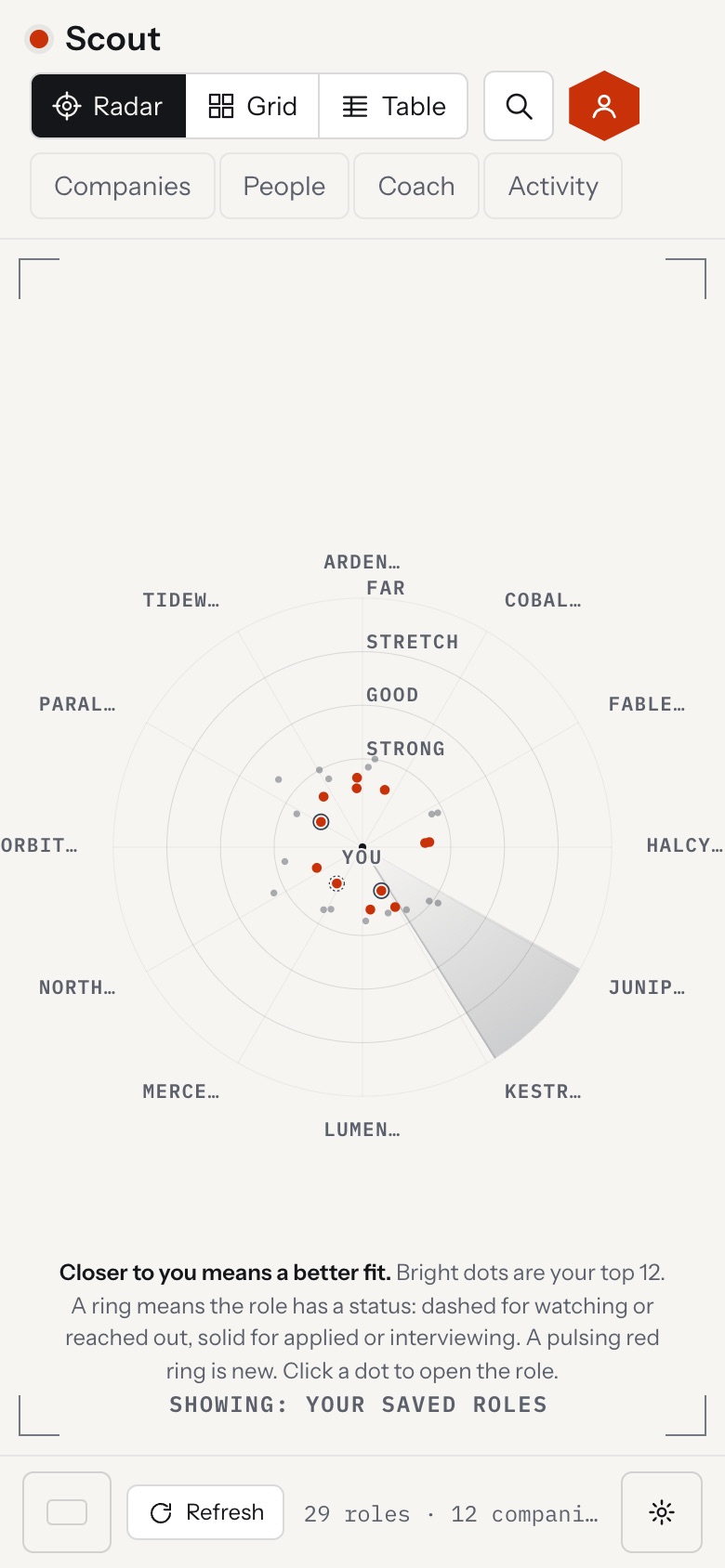
You are the dot in the middle. Every open role is a dot, and the rings say how strong the match is: Strong, Good, Stretch, Far. Your top 12 are bright and the rest are dimmer, so you can still find them.
- Click a dot to open the role, its score and the Apply button beside the radar.
- A ring around a dot means you gave the role a status. A pulsing red ring is a role that is new.
- Prefer a list? Switch to Grid or Table. Press ⌘K to search.
Where jobs come from
How Scout finds roles at a company
Scout reads the text companies already publish before it opens a web page. The Mac app can also read a careers page the way you would.
Job feeds
Greenhouse, Lever, Ashby, SmartRecruiters, Workable and Workday, read directly.
Sitemaps
Many company sites list every job link as plain text for search engines. Scout reads that list first, so there is no search box and no bot check.
Careers pages
For the rest, the Mac app opens the page in your own Chrome, uses the site's search, and collects the listings. A site that refuses is listed by name.
Remote job boards
Remotive, Jobicy, Arbeitnow, RemoteOK, The Muse and We Work Remotely, searched for each company you add.
Paste a role
Found one Scout missed? Paste it and it joins the radar. For a page Scout cannot read, Ask Claude reads it and you paste the roles back.
Layoffs and hiring
Each company shows recent layoff reports and jobs added this week, with a link to the source, from layoffsandhires.com.
Add a company and Scout searches all of this for it at once, then shows what each source returned, so a zero always has a reason.
Roles listed under each company
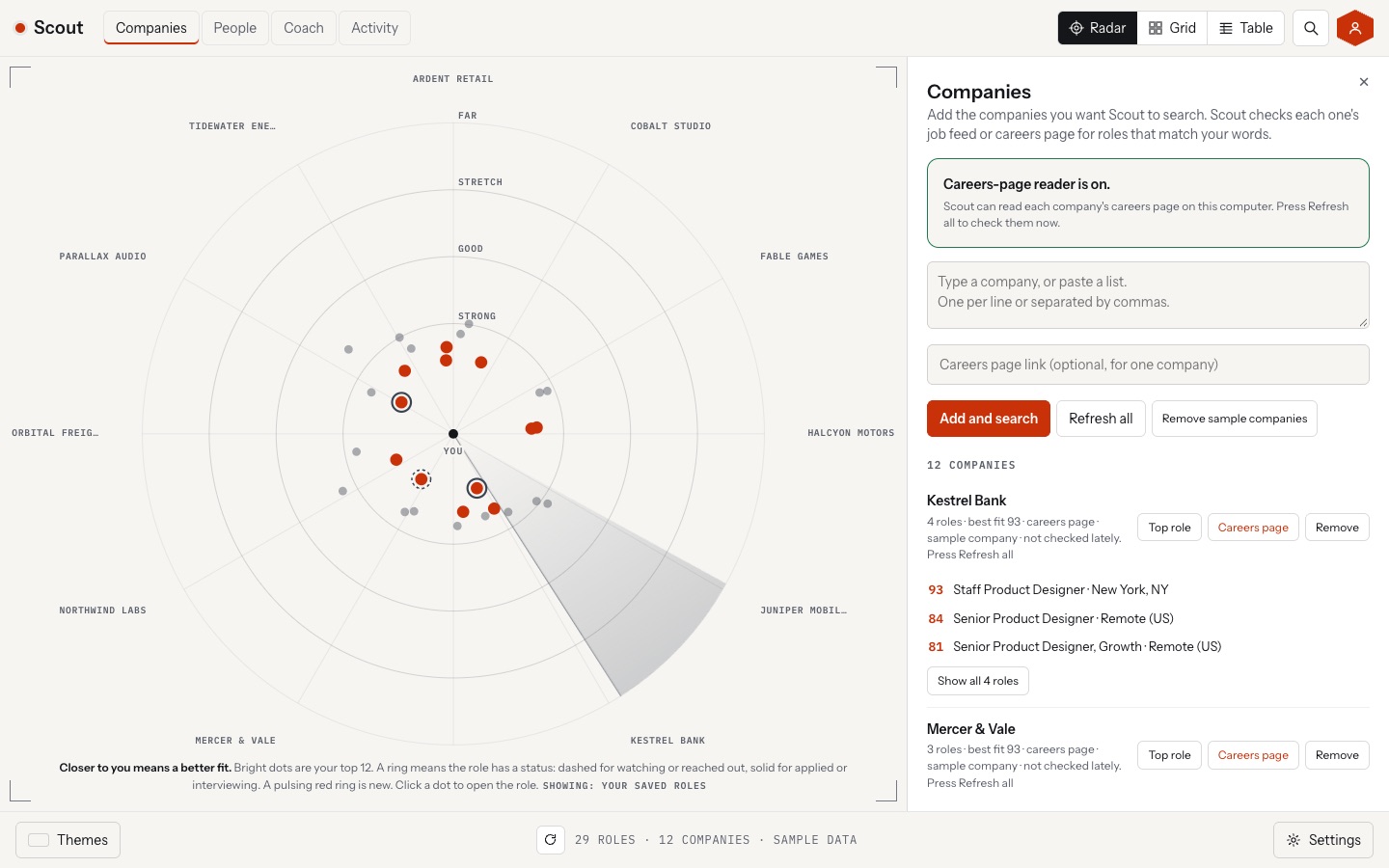
Each company lists the roles found there, with their fit scores, right under its name. Click one to open it. The line under it says what was searched: for example "Greenhouse 29 roles · Jobicy 1 role".
Matching
Your titles decide what shows up
You type the titles you want and the specialties you have. Scout shows a role when its title carries every word of one of your titles, in any order. "Designer" counts for "Design", and Senior, Lead, Staff and Principal count for each other.
- A role that only shares one word with you, like "Network Design and Planning", is kept as related. It stays hidden unless you switch related roles on.
- A role in your field that names one of your specialties, like "Brand Designer" for the specialty Brand, counts too.
- Prefer to set the words yourself? Edit them as chips, add one to see more, remove one to see less.
People and notes
Scout drafts, you send
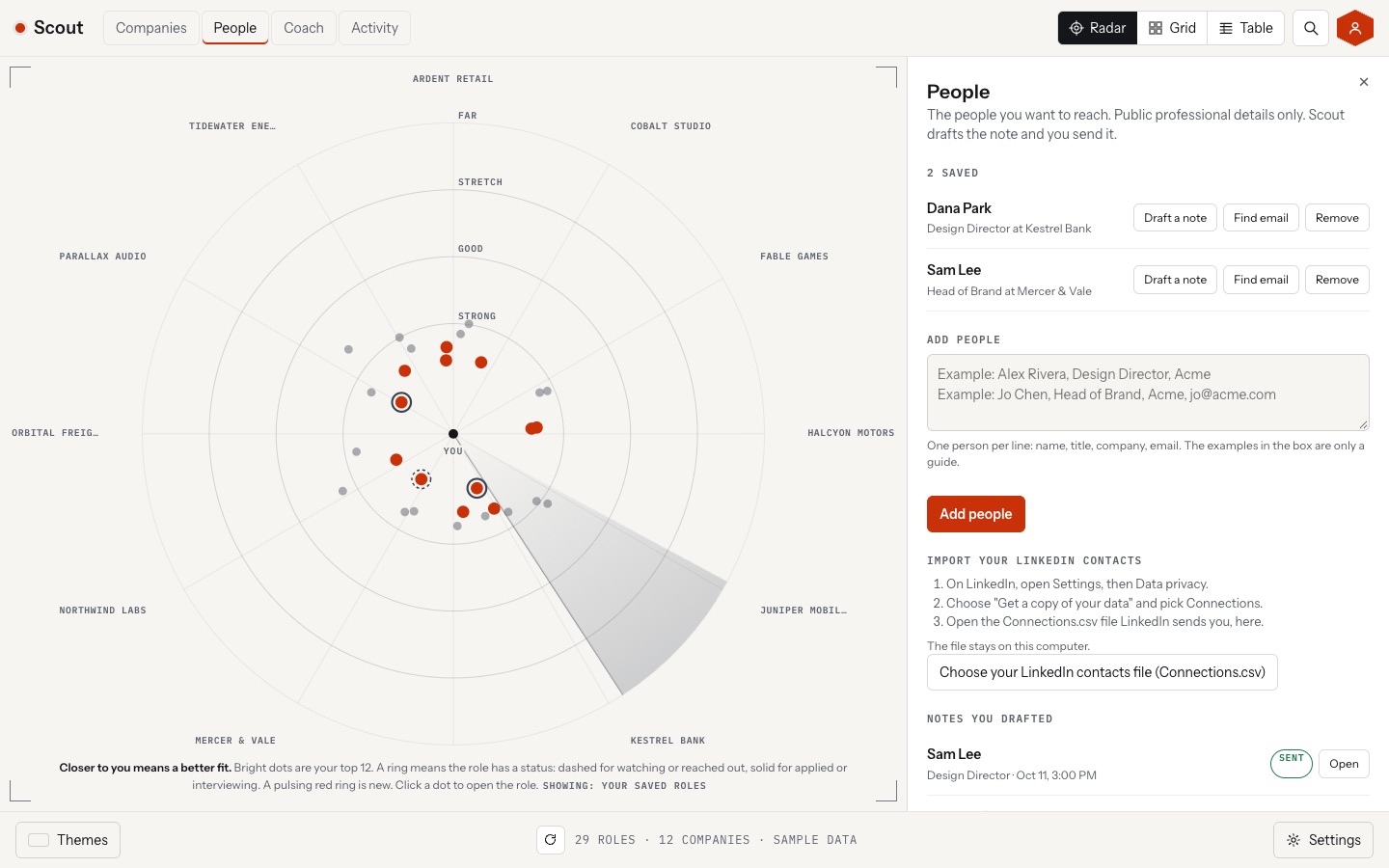
Notes land better when they start with a person. Save the people you want to reach, or import your own LinkedIn connections file. Scout writes a short draft from your headline and the role. You edit it, copy it, and send it yourself.
- Public professional details only, one person at a time. Nothing is collected in bulk.
- Scout never sends a message. There is no auto-send.
- Your LinkedIn file is read on your computer. Scout does not scrape LinkedIn.
The score
A fit score out of 100, built in four steps
The role page shows each step, so you can see why a role scored what it did.
1. Quick match
Title, skills, level and category against what you asked for. It runs on your computer and is instant.
2 and 3. Market fit and resume match
Deeper checks you run in the Claude app. Scout copies a ready request, you paste it there, then paste the answer back. No key and no extra cost.
4. Gap plan
A plan to close the distance to an offer, from the same copy-and-paste step. Whichever step you ran last becomes the score.
Themes
Eleven themes: three plain and eight from sci-fi interfaces
Light, Dark and Match device are the plain three. Each of the eight others is modeled on a real interface, from a Scouter lens to an Imperial ops console. Settings screens stay plain in every theme.
Light: the radar on a pale page.
Dark: the same radar at night.
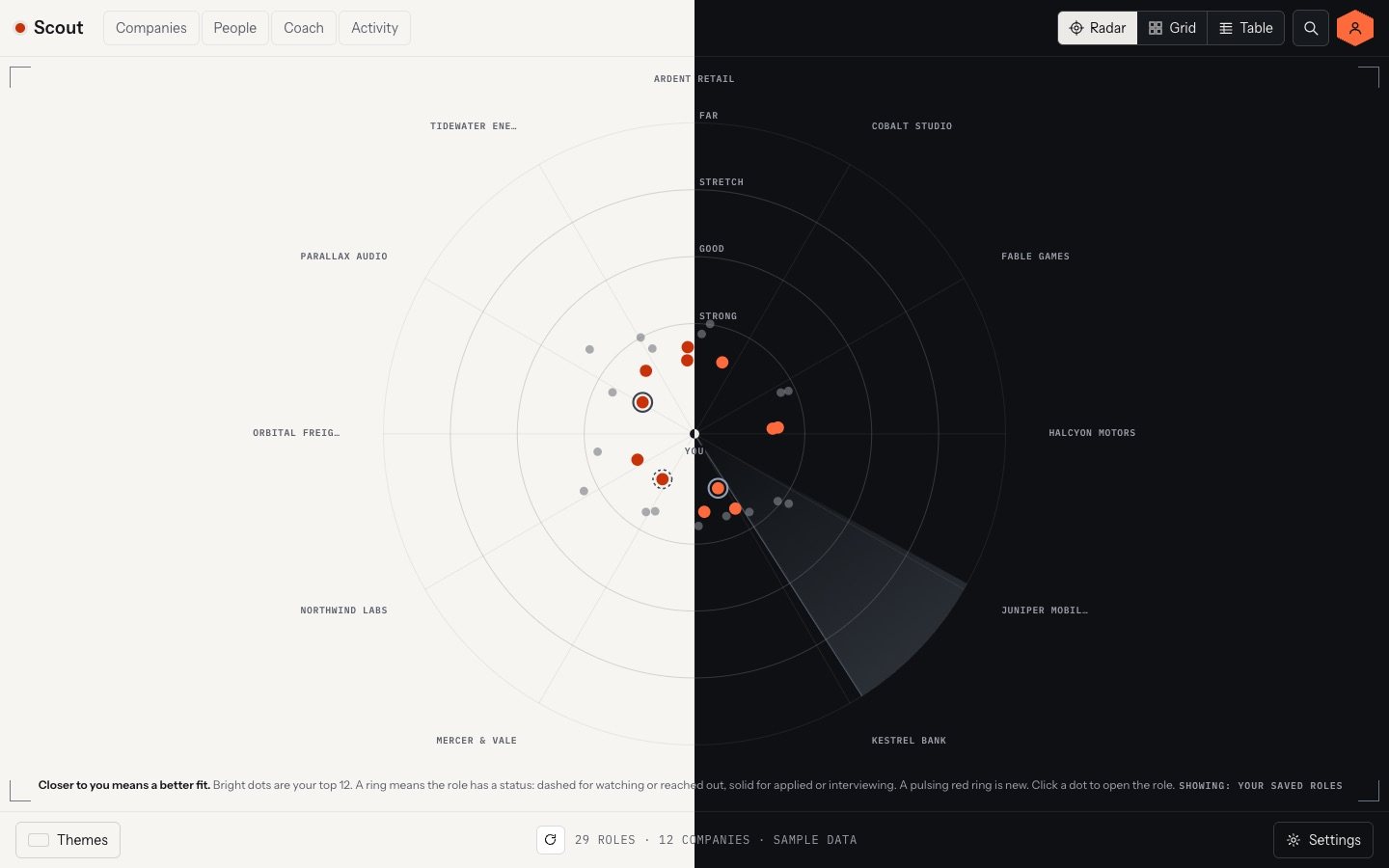
Match device: follows your Mac, light by day and dark by night.

Scouter: a green lens with a power level.

Gundam: a blue mobile suit target monitor.

Rebel HUD: an X-wing targeting computer.
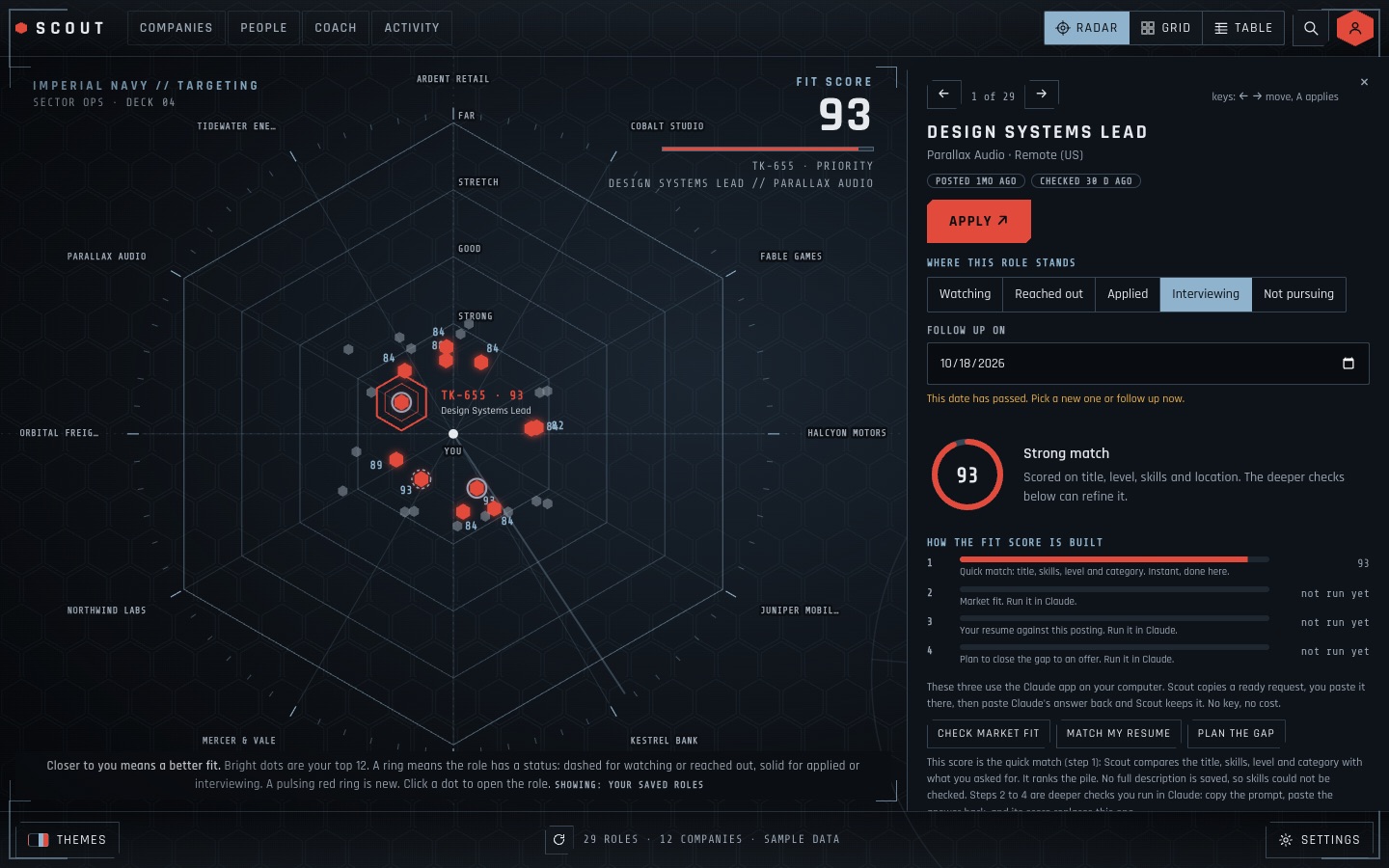
Imperial: a Star Destroyer bridge, with a hex target lock.

Ghost Shell: a teal net dive console.
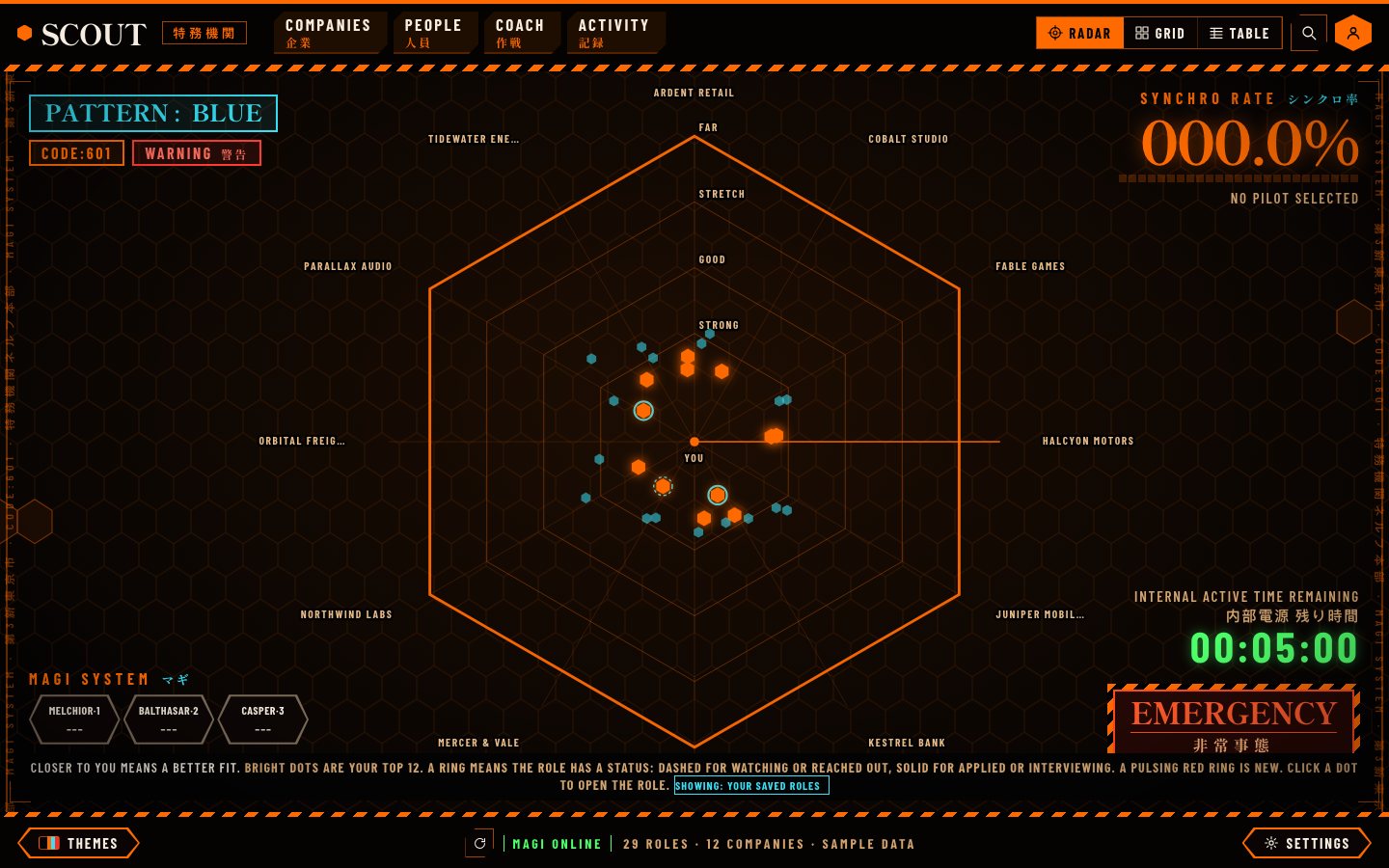
Eva Unit: orange hex radar and a sync rate.
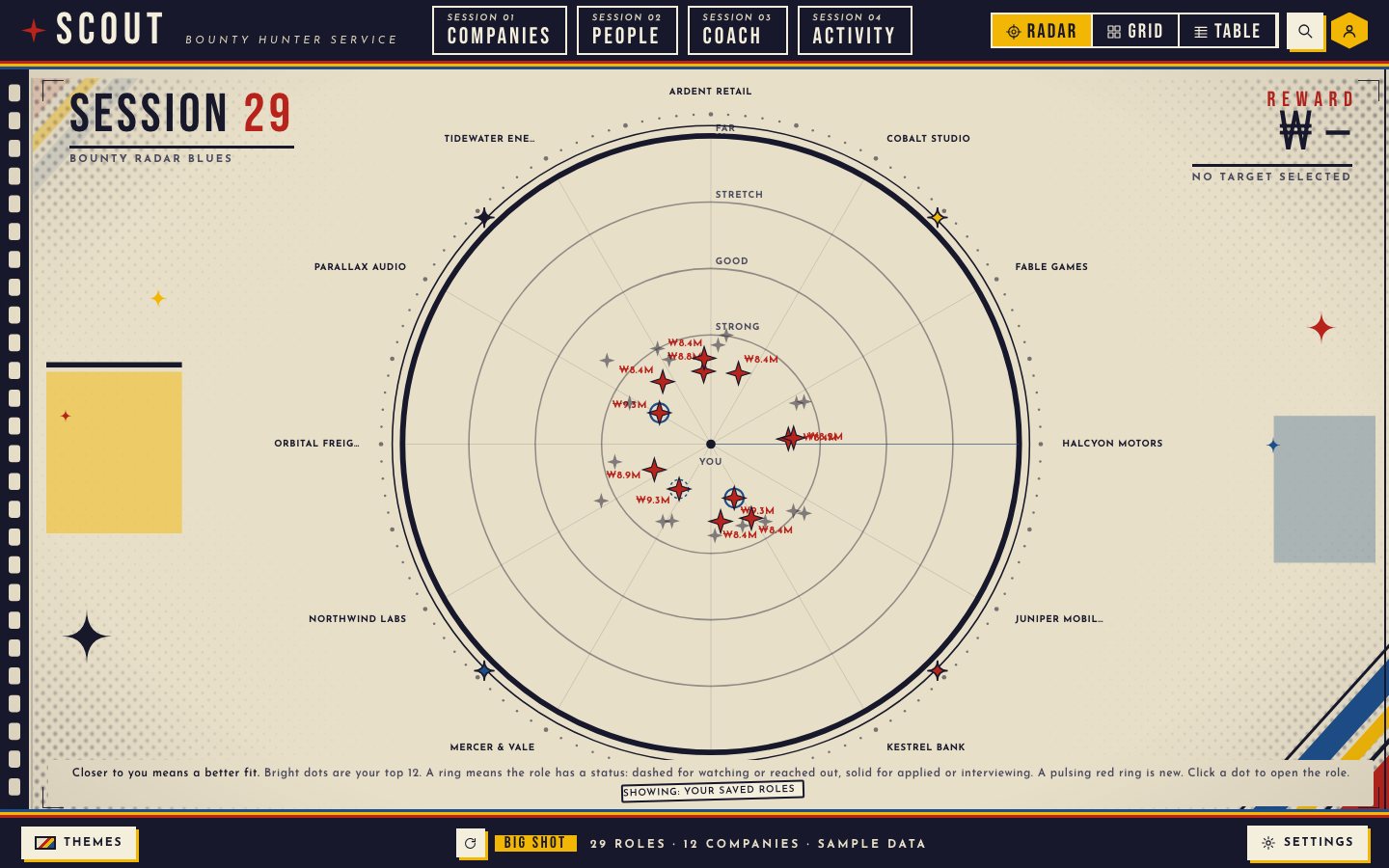
Bebop: a bounty board on cream paper.

Night City: yellow on black, with a hack menu.
App tour
What every part of the app does
The top bar, the bottom bar, and the panels that open beside the radar.
Radar, Grid, Table
Top right. Three views of the same roles. Radar shows fit as distance from you. Grid shows score led cards. Table is for sorting and scanning.
Search
Press ⌘K to search roles, companies and people. It also runs commands: open a panel, switch view, pick a theme, refresh, download a backup, or run setup again. Keys 1, 2 and 3 switch between Radar, Grid and Table.
Companies
Every company you added, with the roles found there, their fit scores, and what each source returned. Add more companies here.
People
Save the people you want to reach, or import your own LinkedIn connections file. Pick one and Scout drafts a note. You copy it and send it yourself, then mark it sent.
Coach
Ask what to apply for, how to prepare for your top role, where your gaps are, or which companies you are ignoring. It answers from your own scores, with no AI behind it.
Activity
Answers one question: are you getting callbacks? It counts the roles you marked, applied to and interviewed for, and shows your callback rate. It lists the follow ups that are due, and keeps a log of what you did.
Filters
In Grid and Table. Narrow the list by strength (Strong is 75 and up, Good 58 to 74, Stretch 40 to 57, Far under 40), roles with a status, new roles, roles you have not applied to, roles still open, or roles near you. Sort by best fit, newest, company or title. Add a role by hand, or export the list as a CSV file.
Hidden by your words
A count in the filter bar shows roles that did not match your titles and specialties. Click it to open your Targets in Settings and change the words.
Themes
Bottom left, or press L. Switch between light, dark and the eight themed looks.
Settings
Bottom right, in five tabs. Profile: your name, headline, level, specialties, strengths, resume and links. Targets: the titles you want, how Scout matches them, and your locations. Alerts: how high a fit must be to call a new role out, and how often to check. Data: save a copy, restore one, run setup again (your notes and people stay), or start over. Feedback: report a problem or an idea.
Feedback
Settings, then Feedback, or press ⌘K and type feedback. Pick what it is about, say what happened, and Scout writes a short Markdown note. You read exactly what it holds, then copy it, download it as a file, or email it to Therum. Scout never sends it for you, and your resume, people, notes and links are never in it.
Your data
No accounts, and your data stays with you
Scout never asks you to sign in. There is no password to lose and no Scout server holding your resume.
| Topic | Mac app | Web version |
|---|---|---|
| Where your data lives | In a folder on your Mac, with rotating backup copies. | In this browser, on this device. Clearing the browser deletes it unless you downloaded a backup. |
| More than one person | Profiles on this computer. Each keeps its own titles, roles, people and notes. There is no password, so anyone who can open Scout can open any profile. To keep yours private, use a separate macOS user. | Profiles in this browser, same rule. |
| Moving to another device | Download a backup in Settings, Data, and restore it on the other device. | Same. |
| Your resume | Used on your computer to match keywords. It is never uploaded. It only leaves when you paste a Claude request into the Claude app yourself. | Same. |
| What the app talks to | Company job pages and the public job boards, and layoffsandhires.com for layoff and hiring facts. Nothing about you is sent. | The public job feeds and boards that allow browsers. |
Syncing across devices is not built yet. Until then, move your data with a backup from Settings, Data.
Install
Install the Scout beta on your Mac
Scout is a beta
The radar, the matching, the notes and the install work today. These parts are still rough:
- A few company sites refuse to be read. Scout lists each one by name, so a zero always has a reason.
- The deeper fit score steps run in the Claude app by copy and paste.
- The Mac app is not signed by Apple yet, and there is no Windows or Intel build.
- Your data does not sync between devices. A backup file moves it.
Scout-1.0.0-arm64.dmg 141 MB
For Macs with Apple silicon (M1 and later), macOS 13 or newer. Free.
SHA-256 d38ddc958921db53b2eeb85f3680d76fcf8529afdc72aef5be96154d77fedc80
- Open the DMG and drag Scout into Applications.
- Open Scout. It is not signed by Apple yet, so macOS may say it cannot verify the app. Right-click Scout, choose Open, then Open again.
- If macOS still refuses, open Terminal and run this once:
xattr -dr com.apple.quarantine /Applications/Scout.app
- Install Google Chrome if you do not have it. Scout uses it to read careers pages. Without Chrome, Scout still reads public job feeds.
- On the first screen, start from what you are looking for, or restore a Scout backup.
Windows and Intel Macs are not available yet.
Web version
Use the Scout beta in your browser
The web version is the same app running in a web page. Open it, answer a few questions, add a company, and roles appear. There is nothing to install.
What works: the radar, Grid and Table, matching, statuses, notes, people, outreach drafts, themes, and reading public job feeds and remote job boards.
What needs the Mac app: reading careers pages and sitemaps (a browser is not allowed to), layoff and hiring tags, and the rotating backup folder.
Questions
Common questions
What does beta mean?
Scout 1.0.0 is built, tested and free to use, and it is still being tuned. A few company sites refuse to be read, the deeper fit score steps run by copy and paste, and the Mac app is not signed by Apple yet. If something fails, Scout says what it could not read.
I have never used Scout. Where do I start?
Open it, choose Start from what I am looking for, and answer the four setup questions. The steps are in Start here, and what each part does is in the app tour.
How do I report a problem or share an idea?
Open Settings, then Feedback. Write what happened and Scout builds a short Markdown note you can read first. Copy it, download it, or email it to Therum. You choose whether to include company names or your titles, and nothing is sent unless you send it.
Does Scout send messages for me?
No. It drafts, and you send. There is no auto-send anywhere in the app.
Is my resume uploaded anywhere?
No. It stays on your computer and is used to match keywords. If you use the Claude steps, you copy a request into the Claude app yourself, and you choose what to paste.
Does it scrape LinkedIn?
No. You can import your own connections file, which LinkedIn lets you download. That file is read on your computer.
Do I need Claude or an API key?
No. The radar, matching and drafts work without it. The deeper score steps use the Claude app you already have, by copy and paste, at no extra cost.
Why does a company show nothing?
Each company row lists what every source returned: for example "Public job feeds: no feed for this company" or "Careers page: blocked by a bot check". In that case use Ask Claude on the company, or paste a link.
Will I lose my data if I clear my browser?
In the web version, yes, unless you downloaded a backup. The Mac app keeps your data in its own folder with rotating backups. Download a backup from Settings, Data, any time.
Is there an iPhone or Android app?
Not yet. The web version works on a phone.